
VPN Split Tunneling: How to Choose Which Apps Use It
Choose which apps use your VPN with a clear split tunneling plan. Check include modes, local printer access, browser exceptions, and kill switch limits.
Looking for a fast, dedicated-IP VPN?
Stay private, unblock streaming, and keep your apps running with failover-ready dedicated routes.
Important
To complete these steps successfully, connect to a dedicated ZibalVPN server first.
Dedicated-IP VPN with instant delivery
Secure dedicated access
Access your favorite apps, sites, and services securely from anywhere.
Buy ZibalVPNTable of Contents
- How do include and exclude modes change app traffic?
- Which apps are reasonable candidates for exclusion?
- Does reaching a printer require excluding an app?
- Why can the same feature behave differently across devices?
- Will the kill switch block excluded applications too?
- How can you confirm the selected application's route?
VPN split tunneling starts with choosing fewer exceptions
Choose apps for VPN split tunneling by starting with a specific need: which app needs a direct connection, and why? If one app has trouble with the VPN, investigate that app first. Excluding your main browser moves a substantial part of your browsing outside the tunnel. Reaching a home printer may only require a local network setting. The right choice depends on the split tunneling mode and the features in your app version. Keep the exception list short, then check the affected app's route after each change.
How do include and exclude modes change app traffic?
Include mode sends only your selected apps through the VPN. Exclude mode gives the selected apps a direct connection while other covered traffic stays in the tunnel. Confusing these modes can reverse your intended setup, so read the description beside the setting before adding an app to either list.
Proton VPN's split tunneling guide, checked September 7, 2026, calls these Windows options "Include mode" and "Exclude mode." Include mode lets you select apps or IP addresses that should use the tunnel. Exclude mode lets selected items bypass it. Your app may use different names for the same choices.
ModeSelected app's routeOther apps' routeSuitable needIncludeThrough the VPNDirectA few specific apps need the VPNExcludeDirectThrough the VPN, within the app's coverageOne exception during everyday VPN use
The explanation of how a VPN works helps separate tunnel traffic from an ordinary connection. Split tunneling distributes those routes between apps. Enabling it does not guarantee a faster or better connection, and an app's problem may have a cause unrelated to routing.
Which apps are reasonable candidates for exclusion?
Exclude an app when you have a clear reason for a direct connection and accept the consequences. A low-stakes app with a confirmed routing problem is a more reasonable candidate than your main browser or a tool containing work data. First check whether updating the app or changing the VPN server resolves the problem.
Write one sentence for each exception explaining why it needs a direct connection. If the reason is a possible speed improvement, compare the same task before and after the change. Download throughput, playback startup, and call quality describe different experiences. Remove an exception that provides no clear benefit so the setup remains understandable.
An excluded app loses the VPN tunnel's protection, though its own HTTPS connections can remain encrypted. Bypassing the tunnel does not automatically expose every message in plain text. The app's connection type and the data it sends still matter. Our article on what VPN protection covers explains that boundary in more detail.
Be particularly deliberate with a browser used for sensitive work. Excluding the browser can cover every site opened in it. A private browsing window does not create a separate app routing boundary. If you need rules for individual sites, check the product's actual feature: selecting an application and selecting a domain are different kinds of rule.
Does reaching a printer require excluding an app?
For a home printer, check local network access settings first. A laptop can communicate with a printer on the same network, while an app exception may also send that app's internet traffic directly. Match the scope of the change to the connection you need to restore.
Check that both devices are on the intended network and that the printer is discoverable. If it works without the VPN and disappears when the VPN connects, look for a local access setting in the app's documentation. Its availability and effect vary by product. Adding a printing app to an exception list does not guarantee that printer discovery will work.
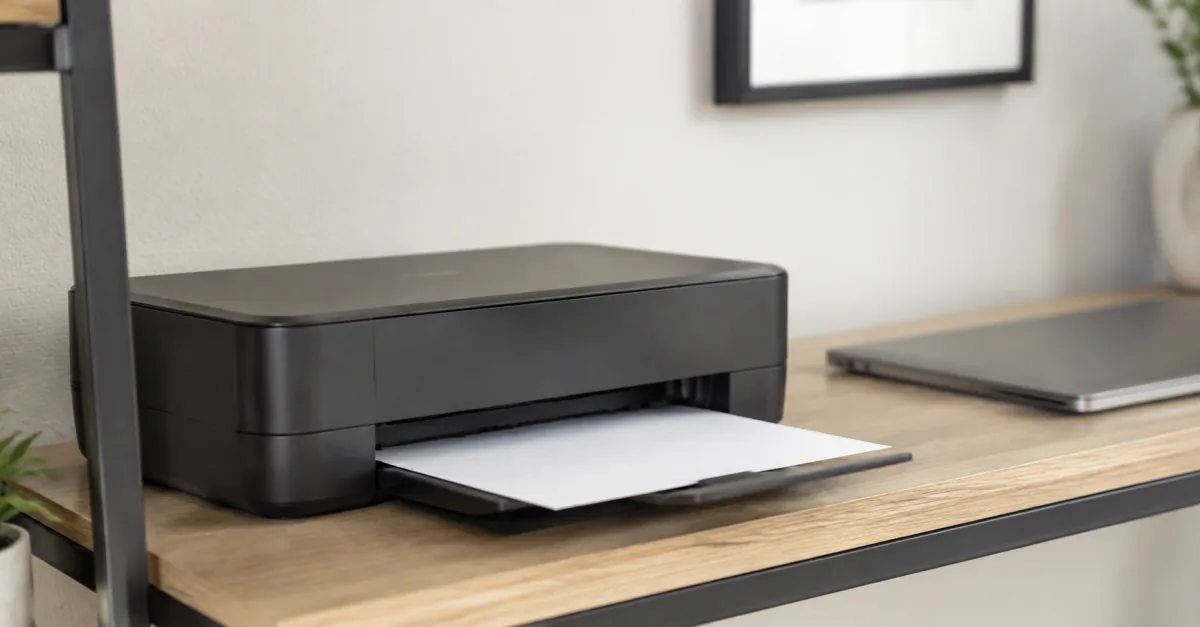
On a work device, routing changes and local access must follow your organization's policy. Treat the printer's network as a separate trust decision, especially in a public location. Printing one document is insufficient reason to exclude every work application from the VPN.
Follow the instructions for your operating system in the setup guide. A feature available in another edition of an app may be absent on your device. Check whether the instructions refer to a browser extension or the installed system application, because their coverage differs.
Why can the same feature behave differently across devices?
Routing capabilities depend on the operating system, app version, and tunnel implementation. A provider may offer both modes on Windows and a narrower set of exceptions elsewhere. Read the instructions for your device, then reopen the target app after changing its route.
The Proton guide linked above describes its Mac feature as experimental and lists limitations affecting WebKit applications, including Safari. A shared networking process can make the actual behavior differ from what selecting an app's name suggests. That limitation is a practical reason to check the route inside the application itself.
The same guide advises Linux users to restart an application that was already open before connecting the VPN. Its Windows instructions also include applying changes or reconnecting. A selected setting therefore cannot establish that an existing application connection has adopted the new rule.
Record your operating system and version, VPN app version, and selected mode before troubleshooting. Updates can change the available features and limitations. This article does not confirm a particular split tunneling capability in ZibalVPN; check the version you actually use for feature availability.
Will the kill switch block excluded applications too?
That depends on the product's design and kill switch mode. Two enabled switches in a settings screen do not establish that direct traffic will stop when the tunnel drops. An excluded app may intentionally sit outside tunnel protection. Look up the disconnection behavior documented for your version.
Proton's compatibility section says its split tunneling generally cannot work alongside its kill switch, with Windows as an exception: Windows supports it with either the standard or advanced kill switch. That is a product-specific distinction. Other VPNs can attach different behavior to similar setting names.
Use a nonsensitive task when checking these settings. Keep an application inside the tunnel if its data must always follow that route and the result is still uncertain. On managed devices, leave organizational controls in place. Giving support the exact combination of modes helps them answer for your configuration.
How can you confirm the selected application's route?
Run the check inside the application or browser covered by the rule. An IP result from one browser cannot confirm every app's route. After applying the setting and reconnecting, reopen the target app and compare its behavior with the exception disabled.

For a browser, use the connection IP check. In exclude mode, you would expect the excluded browser to show a direct route and the covered browser to show the VPN exit. The IP result gives you evidence about that connection; it does not establish how every background request or device DNS lookup travels.
If an app has no connection check, record the result as unresolved and ask support for an appropriate method. Include the app name, include or exclude mode, versions, and observed behavior. Leave passwords, tokens, and sensitive content out of the report. Review the exception list after resolving the problem and retain only entries with a continuing reason for direct access.